

The interactive GLA360 report is a web-view of the report data that facilitates a smooth and effective debrief session, both online and in person.
It showcases all of the data from the pdf version, with easy navigation tools for a structured discussion.
The pdf version of the report can still be downloaded at any time, in any of our available languages.
The Report Overview Page
The main page of the interactive report displays:
Radar Graph
Competency Highlights
Competency Map
Competency Summary
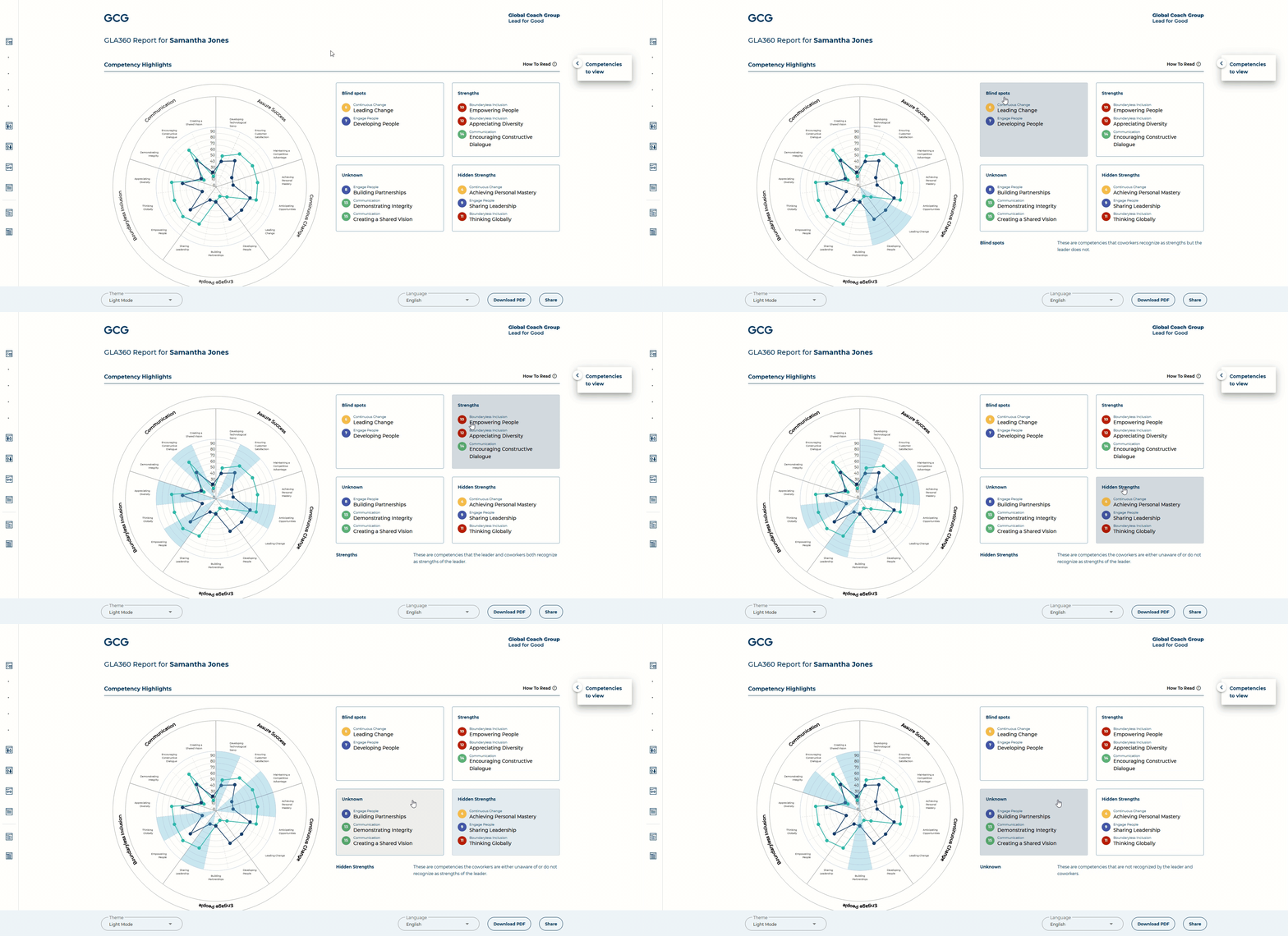
In the Competency Highlights section, you can click on any one of the windows to affect the Radar Graph to the left. It will show all of the competencies that are categorized under each window. Under the four boxes, you will also see a description of what each window represents.
Clicking on one of these windows will also affect the Competency Map below the Highlights. On the right side of the map, you will see four boxes. These four boxes represent the four windows and can be used to update the view as well.
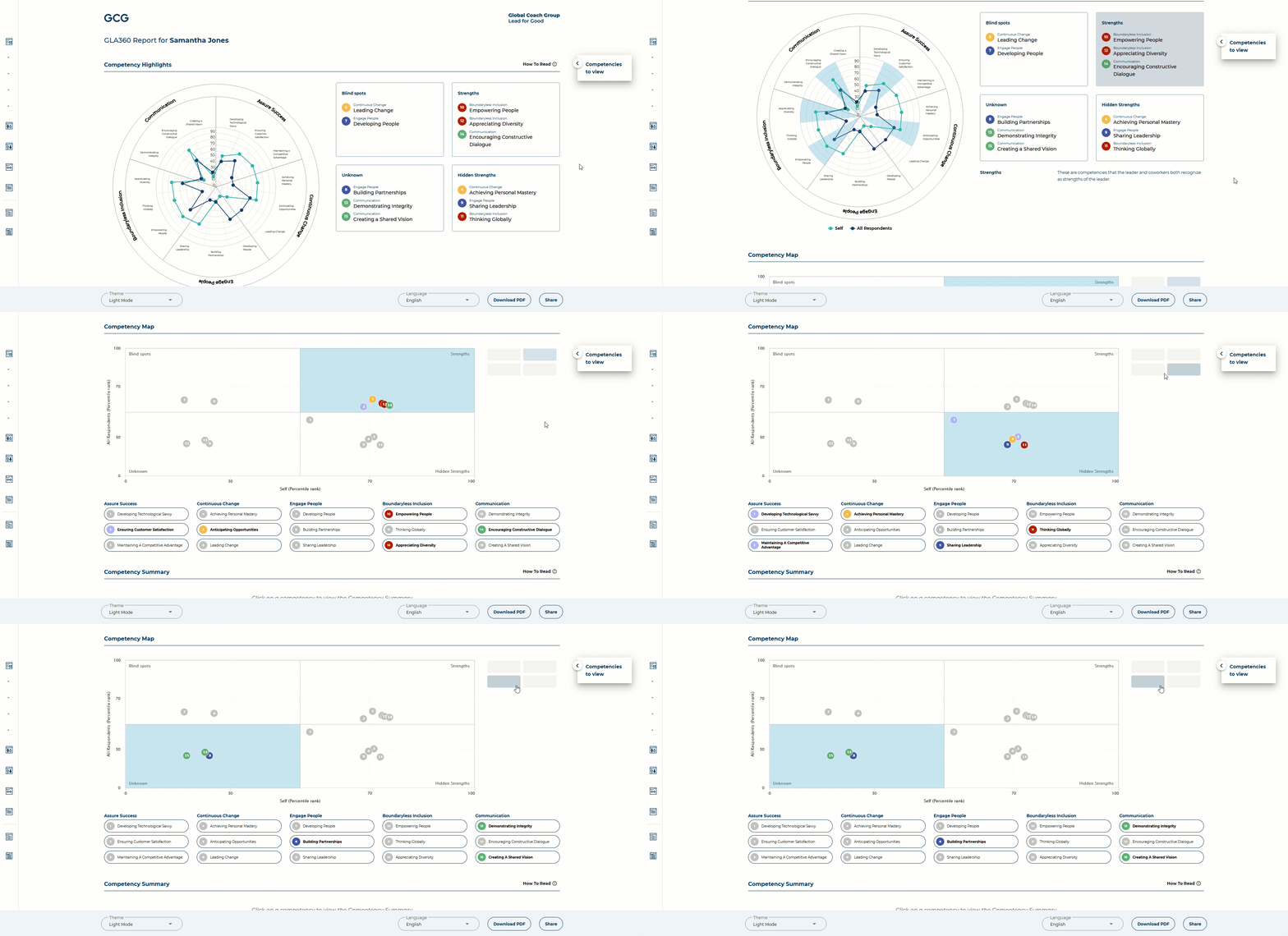
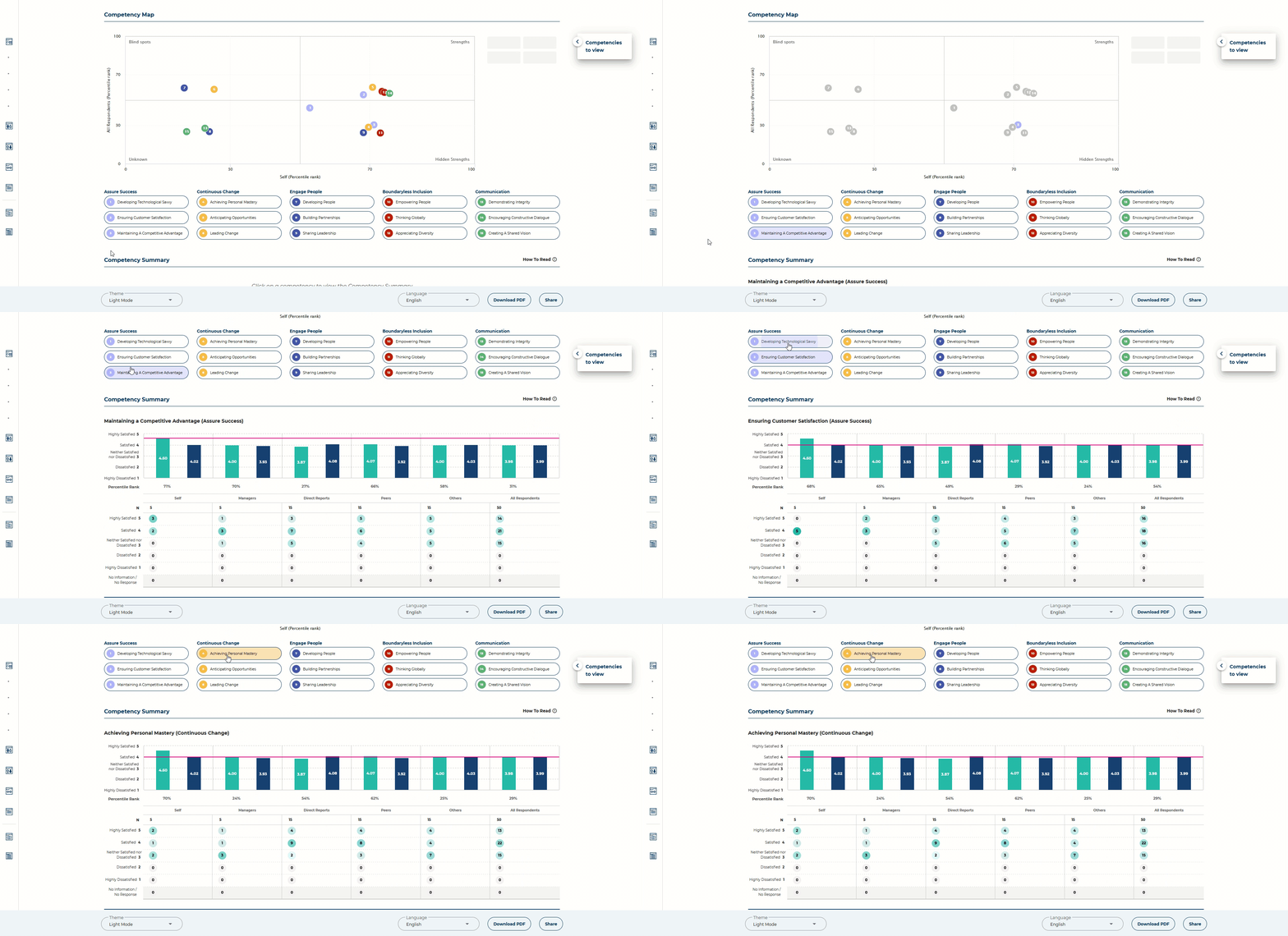
Below the Competency Map, you will see buttons for all of the different competencies. Clicking on one of these buttons will display the Competency Summary for the selected competency, right under the Competency Map:
You can also save competencies in the bookmarking tool called "Competencies to view," which will allow you to set an agenda for your debrief session, and navigate through the competencies more easily.
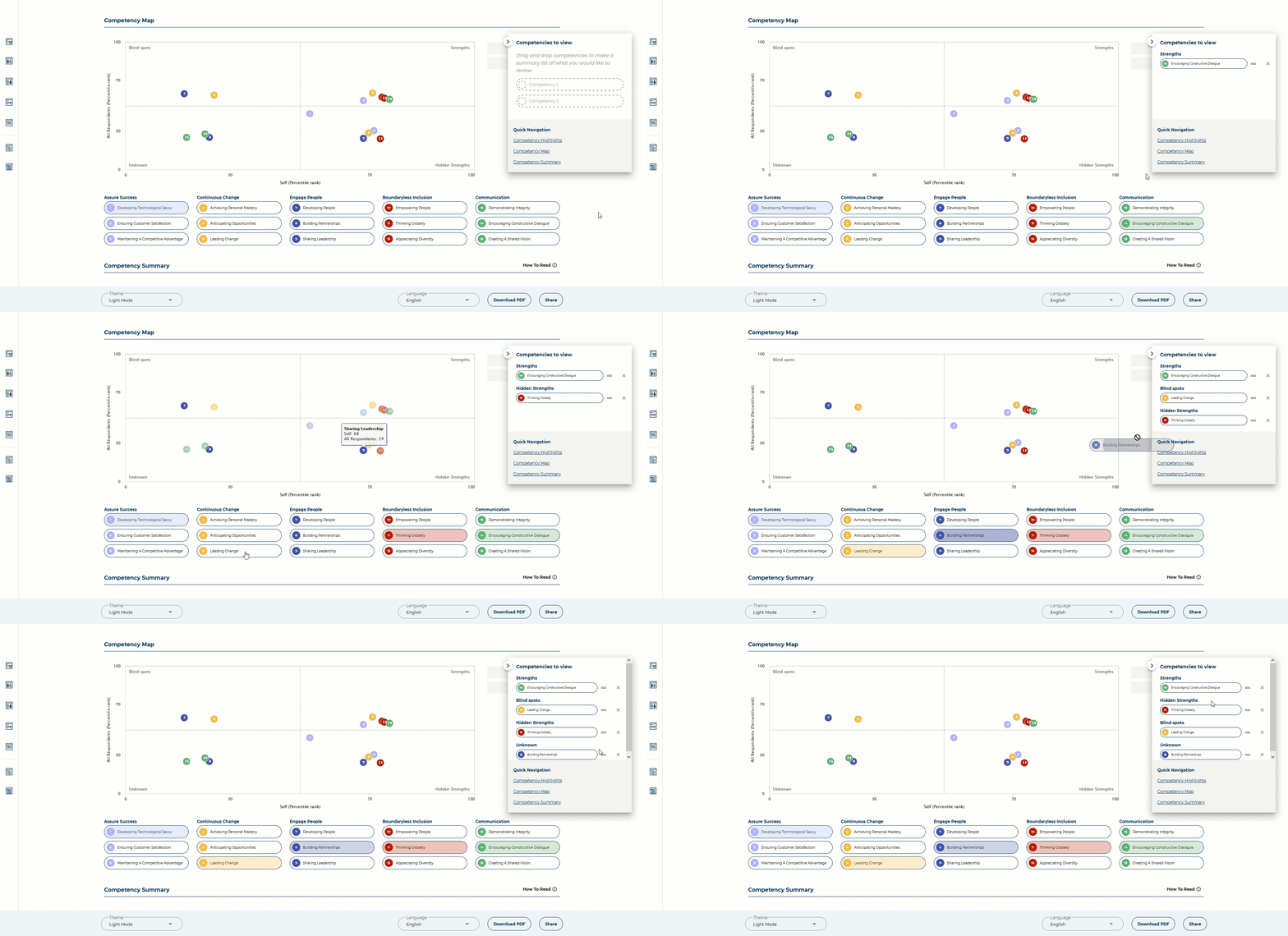
For details on how to use the "Competencies to view" bookmarking tool for your debrief sessions, you can review this article.
Highest / Lowest Rated Items & Significant Gaps
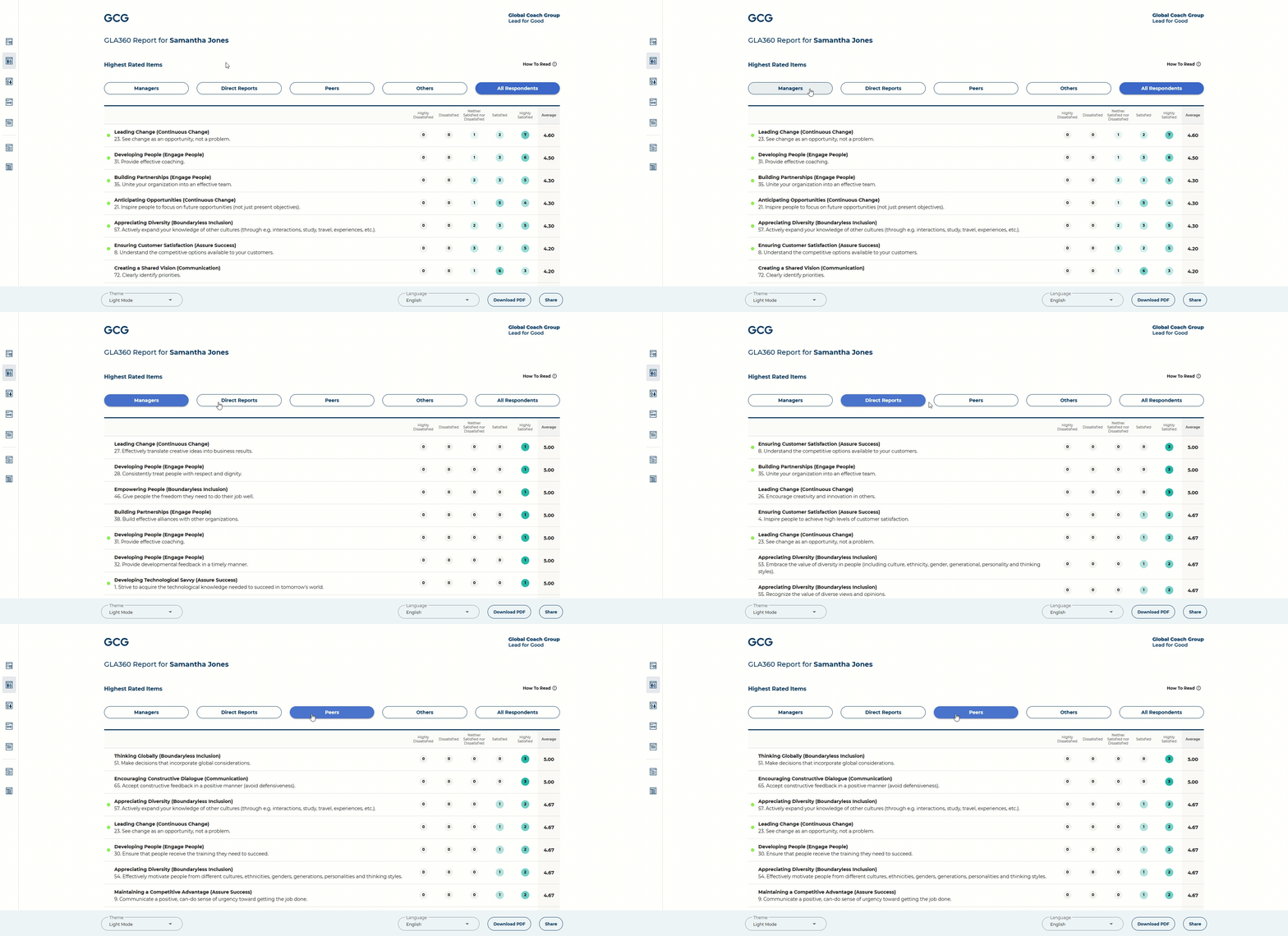
In the Highest Rated Items, Lowest Rated Items, and Significant Gaps sections, you will see that there are filters at the top of the page. To view the items for a specific breakout group, simply click on one of the filters.
The Menu
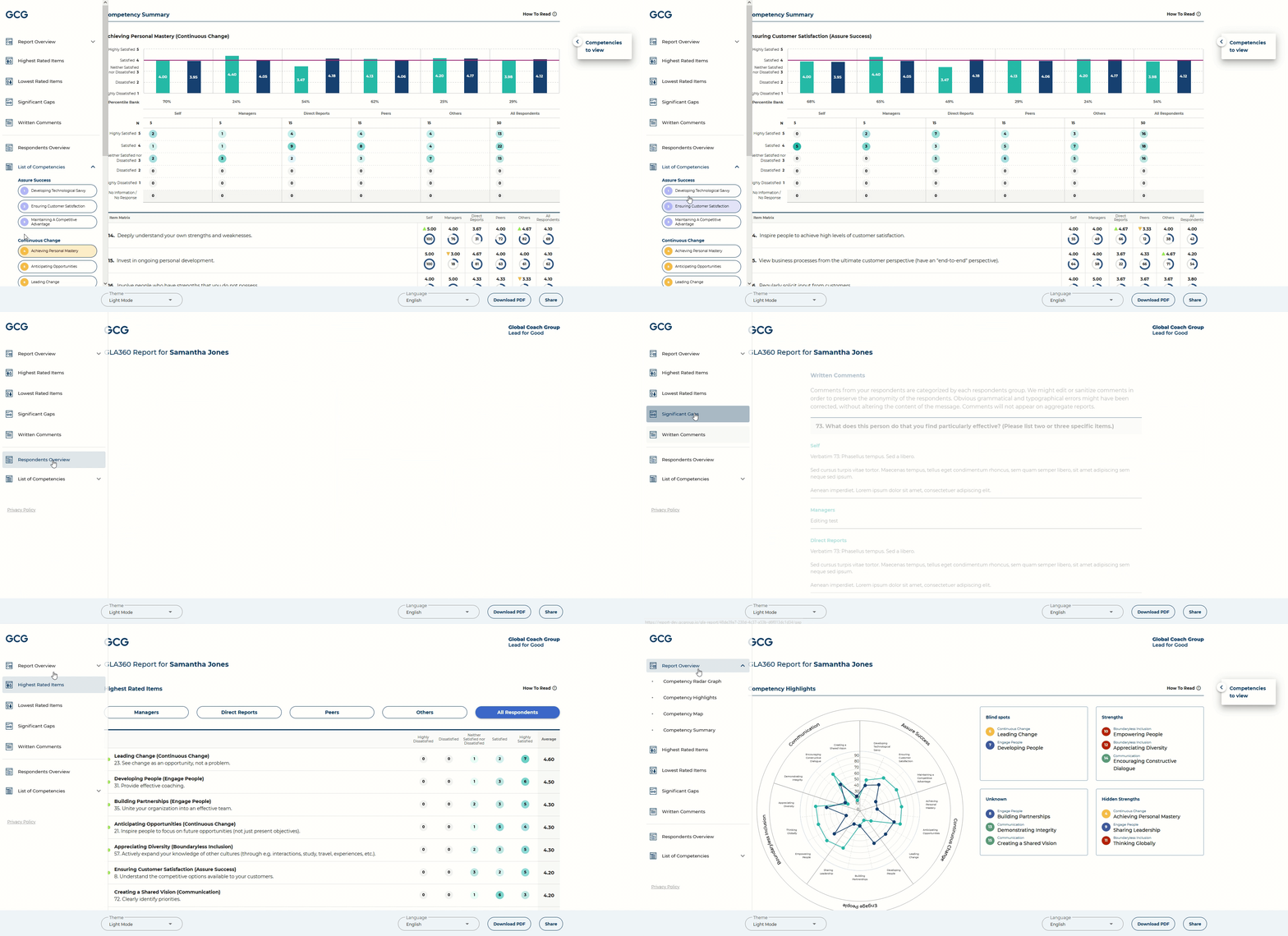
You can navigate through the different pages of the report via the left menu bar. At the bottom of the menu, you will find the list of competencies, which will also affect your view of the Competency Summary & Competency Map upon clicking.
How to Read Sections
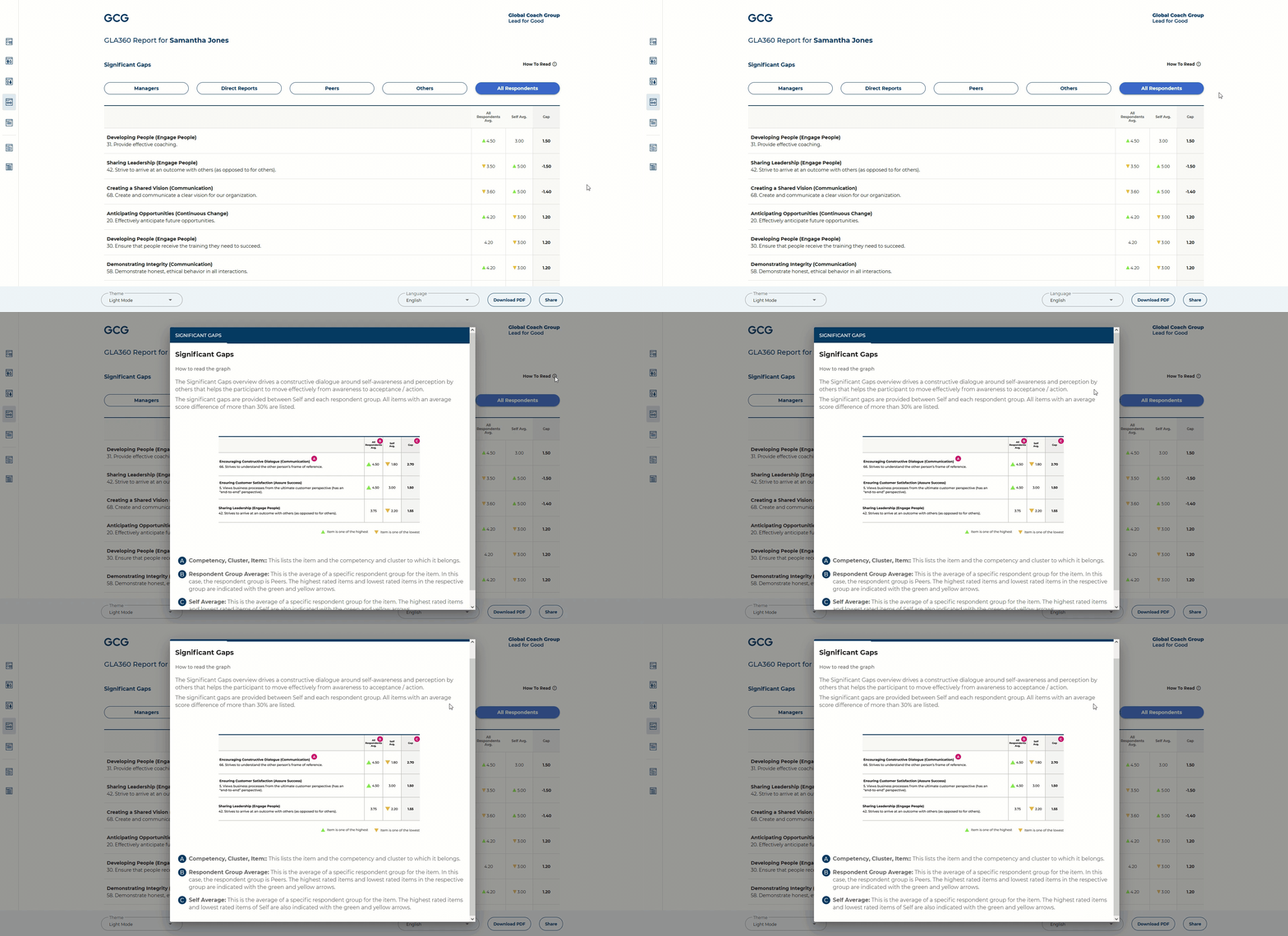
For each section of the report, you can find detailed information on how to read and interpret the data by clicking on "How to Read(i)" at the top right of the section.
To review a sample debrief session utilizing the interactive report, click here.